Cut and paste files in Finder
⌘X a file, then ⌘V it into a new folder. It moves, the way you always expected it to.
 Jelly
Jelly is one menu bar app for the things you do all day on a Mac: joining meetings, arranging windows, grabbing screenshots, and tuning your mouse and keyboard.
15 MB of memory at idle · 2.7 MB app · macOS 27+ on Apple silicon
One app, not seven
Most Macs end up with a separate app for each of these jobs. Every one launches at login, claims a spot in your menu bar, and holds on to memory. Jelly does all seven in a single native app that barely registers.
The usual setup
7 downloads · 7 login items · 7 menu bar icons · 7 things to update
With Jelly
One download, one login item, one place to change settings. Plus iCloud sync for all of it.
Features
Each tool is native, keyboard-first, and only asks for the permissions it needs once you switch it on.
Meetings
Your next meeting counts down in the menu bar. A minute before it starts, Jelly puts a full-screen reminder in front of you with the join link one click away.
Tiling
Snap windows into halves, full screen, or a centered workspace with a shortcut, or just drag them to an edge. Moving to another display keeps the layout you chose.
Capture
Press ⇧⌘X, then click a window or drag an area. Add text, arrows, and shapes right on the selection, then copy it or save a PNG. No editor window, no extra steps.
Mouse & keyboard
Map clicks, directional drags, and wheel actions to the things you actually do, then override them per app. Remap modifiers for all keyboards or just one.
⌘X a file, then ⌘V it into a new folder. It moves, the way you always expected it to.
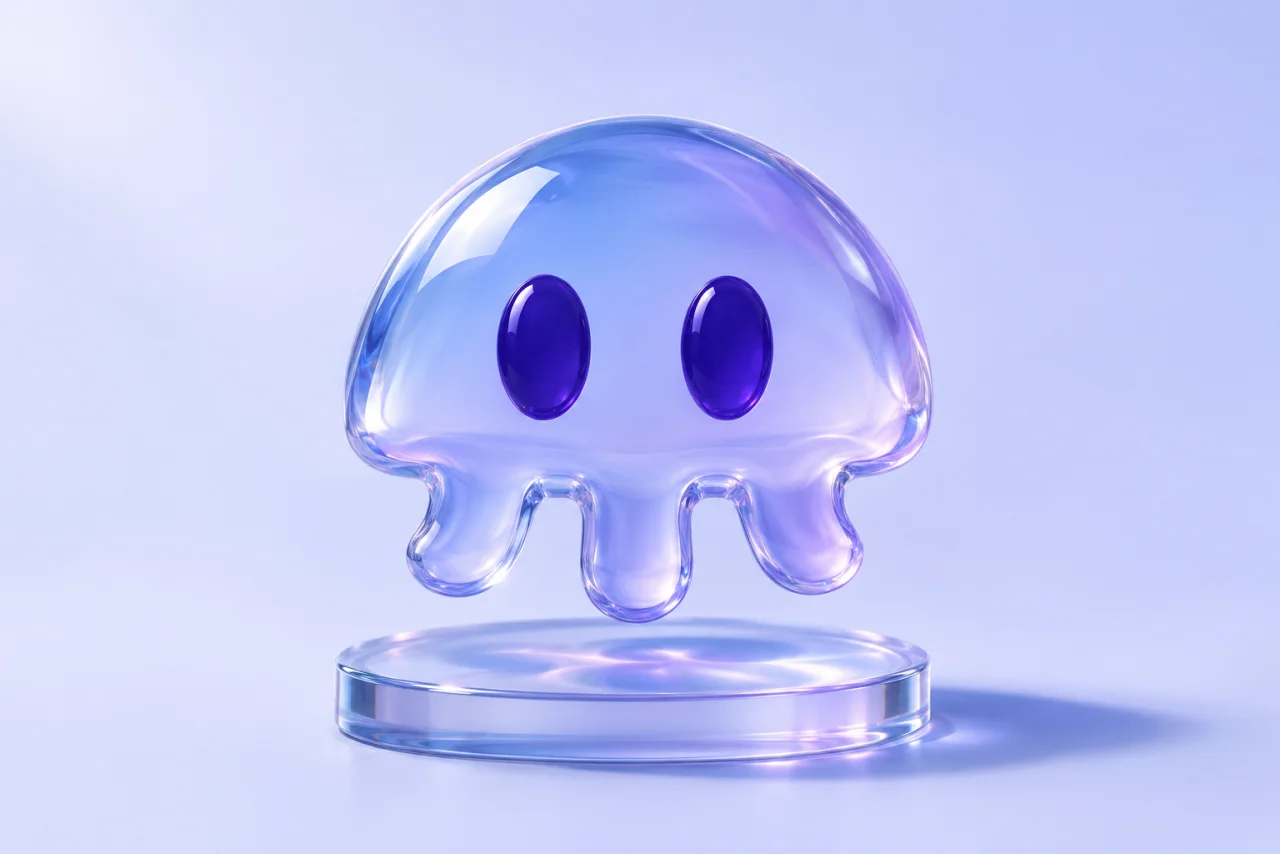
Start a timed or open-ended session from the menu bar. The jellyfish turns amber so you know it’s on.
Sync calendars, markup tools, mouse and keyboard profiles, and even your wallpaper through iCloud Drive.
Setup
Open the disk image, drag Jelly into Applications, and open it. The jellyfish appears in your menu bar and launches at login.
Open settings from the jellyfish and grant permissions only for the features you use: Calendar, Accessibility, Screen Recording.
Switch on Sync Jelly settings, and a fresh install on any Mac with your Apple Account picks up where you left off.
FAQ
Macs with Apple silicon running macOS 27 or later. Jelly is a native app and is notarized by Apple.
Window tiling and input remapping need Accessibility and Input Monitoring; screenshots need Screen Recording; meetings need Calendar. Each is requested only when you turn that feature on.
Quit any app that owns the same shortcuts before switching. Jelly automatically pauses its mouse profile while Logitech Options+ is running.
Calendar choices, screenshot tools, mouse profiles, keyboard mappings, and optionally a wallpaper, stored in your own iCloud Drive. Permissions are granted per Mac.
For Macs with Apple silicon running macOS 27 or later.
Download Jelly for MacVersion 1.2.17 · 1.7 MB download · Notarized by Apple